Quick Summary: What This Blog Covers
Learn how Google Analytics 4 (GA4) works, how to set it up correctly, and why tracking micro-conversions helps you understand user behavior, optimize marketing campaigns, and turn more visitors into customers.
Introduction
I remember the week Universal Analytics shut down. A lot of marketers I knew panicked. Reports they had relied on for years suddenly looked different. Metrics they understood by instinct now needed to be relearned from scratch. I will be honest — I was frustrated too.
But here is what I will say after spending serious time inside Google Analytics 4: once I understood how it actually works, it gave me more insight than Universal Analytics ever did. Not less. More. Especially when it came to one specific thing I care a lot about — tracking the small actions that lead up to a sale.
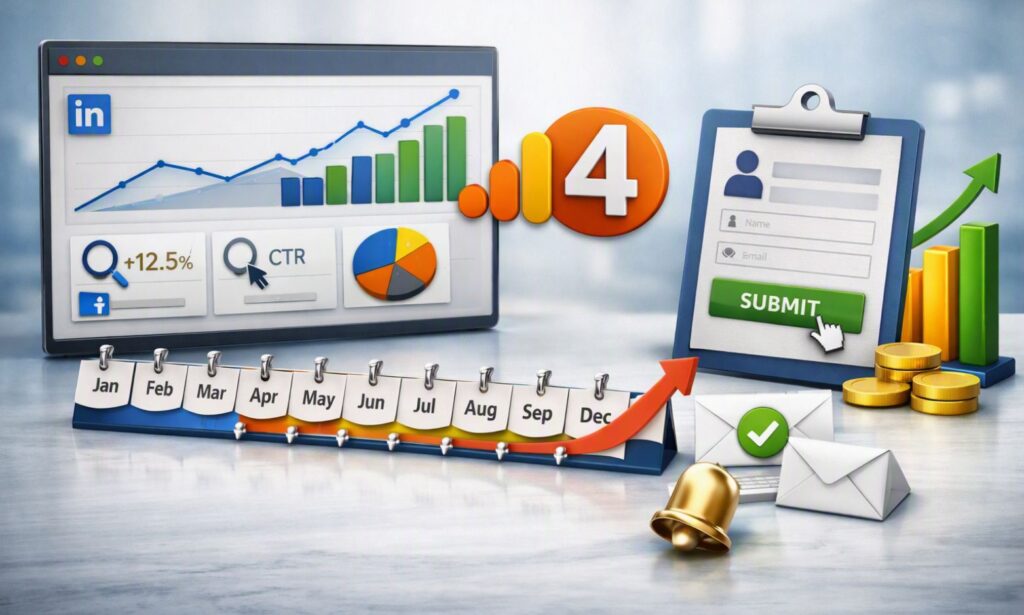
This blog covers two things together because they connect directly. First, a complete guide to understanding and using GA4 properly. Second, how I personally use GA4 to track micro-conversions — the small, meaningful steps a visitor takes before they become a customer. By the end, you will see why these two topics are really one conversation.
Part One: Google Analytics 4
Why GA4 Works So Differently From Universal Analytics
The biggest mental shift I had to make with GA4 was understanding its core model. Universal Analytics tracked sessions and pageviews as the primary unit of measurement. GA4 tracks events as the primary unit of measurement. Everything — a pageview, a click, a scroll, a purchase — is an event.
This shift matters more than it sounds. With events as the foundation, GA4 lets you track far more granular user behavior without needing custom workarounds. In Universal Analytics, tracking something like a video play or a file download required custom event setup that felt clunky. In GA4, this kind of tracking is built into the model from the ground up.
“GA4 properties report an average of 30% more trackable user interactions than Universal Analytics properties for the same website.” — Google Analytics Help Documentation
That extra visibility is exactly what makes GA4 so useful for the second half of this blog.
The Core Building Blocks of GA4
Before diving into setup, I want to walk through the main concepts that everything else in GA4 is built on.
Events
Every single interaction in GA4 is an event. Some events are collected automatically the moment you install the tracking code — things like page views, scrolls, outbound clicks, and site searches. Others need to be set up manually, depending on what matters to your specific business.
Conversions (Key Events)
In GA4, conversions are called key events. You choose which events in your property matter enough to count as a conversion — a purchase, a form submission, a newsletter signup. I mark these clearly because they directly feed into reporting, attribution, and advertising platforms like Google Ads.
Parameters
Each event carries parameters — extra pieces of information that describe the event in more detail. A “video_progress” event might carry a parameter for the percentage watched. A “purchase” event carries parameters for revenue, currency, and items purchased. Parameters are what make GA4 data so rich and flexible.
Audiences
GA4 lets me build audiences based on any combination of events, parameters, and user properties. These audiences can be exported directly into Google Ads for retargeting, which is one of the most powerful connections in the entire platform.
Explorations
This is GA4’s advanced analysis workspace. Instead of relying only on pre-built reports, I build custom funnels, path explorations, and segment overlaps here. This is where the real strategic insight happens once basic tracking is in place.
Setting Up GA4 the Right Way
I have audited a lot of GA4 accounts that were technically “set up” but missing critical pieces. Here is the setup process I follow on every new account to make sure nothing important gets skipped.
Step 1: Create the property correctly
I create the GA4 property directly inside Google Analytics, choosing the correct time zone and currency from the start. Changing these later can create reporting inconsistencies, so I get it right the first time.
Step 2: Install the tracking code through Google Tag Manager
I always install GA4 through Google Tag Manager rather than hardcoding it into the site. This gives me flexibility to add new events later without touching the website’s code every time.
Step 3: Mark key events
Once basic tracking is live, I go into Admin and mark the events that represent real business value as key events. This usually includes purchases, lead form submissions, and phone clicks for service businesses.
Step 4: Set up enhanced ecommerce (for online stores)
For ecommerce clients, I implement the full ecommerce event structure — view_item, add_to_cart, begin_checkout, purchase. This unlocks revenue reporting, product performance data, and checkout funnel analysis.
Step 5: Link Google Ads and Search Console
I connect Google Ads and Google Search Console to the GA4 property. This combines paid, organic, and on-site behavior data into one connected view, which makes cross-channel analysis far easier.
Step 6: Set up internal traffic filtering
I exclude internal team traffic and developer testing traffic using IP-based filtering inside Admin settings. Skipping this step quietly inflates and distorts every report.
“Roughly 18% of GA4 properties analyzed in a recent industry audit had no internal traffic filter applied, leading to inflated session counts.” — MeasureSchool Analytics Audit
Reports I Check Regularly in GA4
Realtime Report
I use this mainly right after launching a new tracking setup or a new campaign — to confirm events are firing correctly in real time.
Acquisition Reports
This shows me where traffic comes from — organic search, paid search, social, referral, direct. I review this weekly to understand which channels are actually driving visitors.
Engagement Reports
This covers pages and screens, events, and conversions. I use this to see which content performs best and which events fire most often.
Monetization Reports
For ecommerce sites, this shows purchase revenue, items purchased, and checkout behavior in detail.
Retention Reports
This shows how often users come back to the site after their first visit. For businesses with longer sales cycles, this report tells a story that single-session data simply cannot.
Part Two: How I Track Micro-Conversions That Lead to Sales
Why Micro-Conversions Matter So Much
A macro-conversion is the big goal — a sale, a booked call, a completed lead form. A micro-conversion is every smaller, meaningful action someone takes on the way there.
Before I started taking micro-conversions seriously, I judged campaigns purely by whether they generated direct sales. That approach made me kill campaigns that were actually working — just not yet at the final stage. People were engaging deeply, visiting pricing pages, watching demo videos. They just needed more time or more touchpoints before converting. I almost never saw that, because I only looked at the final number.
“Businesses that track micro-conversions report up to 30% improvement in campaign optimization accuracy.” — CXL Institute
The Micro-Conversions I Track Consistently
- Scroll depth — did the visitor read past 50% or 75% of the page?
- Time on page — did they actually engage, or bounce immediately?
- Pricing page visits — one of the strongest intent signals for service and SaaS businesses
- Video plays and percentage watched
- Add to cart — even without a completed purchase
- Form starts — they opened the form but did not finish it
- Phone number or email clicks
- FAQ section interactions — specific questions usually signal real consideration
- Return visits within seven days — they are still thinking about it
Not every micro-conversion carries equal weight. A pricing page visit from a paid traffic source tells me a lot more than a scroll depth event on a general blog post. Context always shapes how I read the data.
How GA4 Makes Micro-Conversion Tracking Easier
This is exactly where Part One connects to Part Two. GA4’s event-based model is what makes detailed micro-conversion tracking realistic without a complicated custom setup.
Step 1: Map the funnel first
Before building anything in GA4, I map out the full user journey from first visit to final sale. I identify which actions along that journey actually indicate rising intent.
Step 2: Build custom events in Google Tag Manager
I create event tags in Google Tag Manager for each micro-conversion. Common setups I use:
- Scroll Depth triggers at 50% and 75%
- Click triggers on specific elements like “View Pricing” or “Watch Demo”
- Timer triggers for time-on-page thresholds
- Form interaction triggers that fire on field focus
- YouTube video triggers tracking 25%, 50%, 75%, and 100% watched
Step 3: Send events into GA4
Each tag sends a GA4 event with relevant parameters. Inside Google Analytics, I confirm these events appear correctly under Realtime, then mark the highest-intent ones as key events.
Step 4: Import into Google Ads as secondary signals
I import the strongest micro-conversions into Google Ads as secondary conversion actions. This gives the bidding algorithm more signal to learn from, especially early in a campaign when sales data alone is too thin to optimize against.
“Campaigns using secondary conversion actions for smart bidding see up to 20% lower cost per acquisition.” — Google Marketing Platform Blog
Reading the Patterns in Micro-Conversion Data
Once the data starts flowing into GA4, the real value comes from how I interpret it.
- High scroll depth, low form starts — the content engages people, but the call-to-action is weak or unclear
- High pricing page visits, low purchases — pricing objections or missing trust signals on that specific page
- High form starts, low completions — the form is too long or something feels confusing
- High video plays, low CTA clicks — the video builds interest in the concept but does not connect clearly to the offer
Each pattern tells a different story, and each one points toward a different fix. I never guess. I check what GA4’s event data is actually showing me first.
Building a Micro-Conversion Funnel in GA4 Explorations
One feature I rely on heavily is the Funnel Exploration inside GA4’s Explorations workspace. I build a step-by-step funnel using my tracked micro-conversion events — for example: page_view → scroll_75 → pricing_view → form_start → purchase.
This visual funnel shows me exactly where the biggest drop-off happens. If 60% of users who view pricing never start the form, that is where I focus my next round of testing and optimization. The funnel removes the guesswork entirely.
A Real Example of This in Action
I worked on a campaign for a B2B service client. Sales were inconsistent, and the team assumed the ad creative was the problem. When I checked GA4, the data told a different story. A large share of visitors were reaching the pricing page and then leaving within seconds — no scroll, no FAQ clicks, nothing.
That pattern pointed straight at the pricing page itself, not the ads. We added clearer trust signals, a short FAQ section, and a simplified layout. Form starts from that page increased by 41% over the following month. The ads never needed to change. The data showed exactly where the real problem was.
Final Thoughts from Ali Jaffar Zia
GA4 took time for me to fully trust. But once I understood its event-based structure, I realized it was built almost perfectly for exactly what I care most about — understanding the full journey a customer takes, not just the final click that closes the sale.
Micro-conversion tracking turned vague, frustrating campaign performance into something I could actually diagnose and fix. Instead of asking “why didn’t this work,” I started asking “where exactly did people drop off, and why.” That shift changed how confidently I make decisions.
If you take one thing from this guide, let it be this: stop measuring your marketing only by the final sale. Track the small steps. GA4 gives you everything you need to do that, for free, right now.
Frequently Asked Questions
1. Is Google Analytics 4 free to use? Yes, the standard version of GA4 is completely free for any website or app. A paid version called GA4 360 exists for enterprise-level data volume and support needs, but most businesses never need it.
2. What replaced Universal Analytics? Google Analytics 4 fully replaced Universal Analytics after Google sunset the older platform. GA4 uses an event-based data model instead of the session-based model that Universal Analytics relied on.
3. What is the difference between a key event and a regular event in GA4? Every interaction tracked in GA4 is an event. A key event is simply an event you have manually marked as important enough to count as a conversion, such as a purchase or a lead form submission.
4. How do I track scroll depth in GA4? GA4 automatically tracks a basic scroll event when users scroll 90% down a page. For more specific thresholds like 50% or 75%, I set up custom triggers in Google Tag Manager and send them into GA4 as separate events.
5. Can GA4 track phone call clicks? Yes. I set up a click trigger in Google Tag Manager that fires when someone clicks a tel: link, then send that as an event into GA4. This is one of the most valuable micro-conversions for service-based businesses.
6. What is a Funnel Exploration in GA4? It is a custom report inside the Explorations workspace that lets you visualize how users move through a specific sequence of events, step by step. It clearly shows where users drop off, which makes it one of the most useful tools for diagnosing conversion problems.
7. How does GA4 connect to Google Ads? Once linked inside Admin settings, GA4 can share audiences and conversion data directly with Google Ads. This allows you to build retargeting audiences from specific GA4 events and import key events as conversion actions for campaign optimization.
8. Why do my GA4 numbers look different from my old Universal Analytics numbers? The two platforms measure things differently at a fundamental level. GA4 uses an event-based model with different session definitions and attribution logic than Universal Analytics used. Comparing the two directly rarely produces a clean apples-to-apples match.
9. How many micro-conversions should I track in GA4? I usually recommend starting with three to five micro-conversions that most clearly reflect rising purchase intent for your specific business. Tracking too many at once creates noise and makes it harder to focus on what actually matters.
10. Can small businesses use GA4 micro-conversion tracking without a developer? Yes, in most cases. Google Tag Manager allows you to set up most common micro-conversion events — clicks, scrolls, form interactions — without writing custom code. A developer becomes more necessary only for highly custom tracking needs, like complex ecommerce setups.