Summary of the Blog
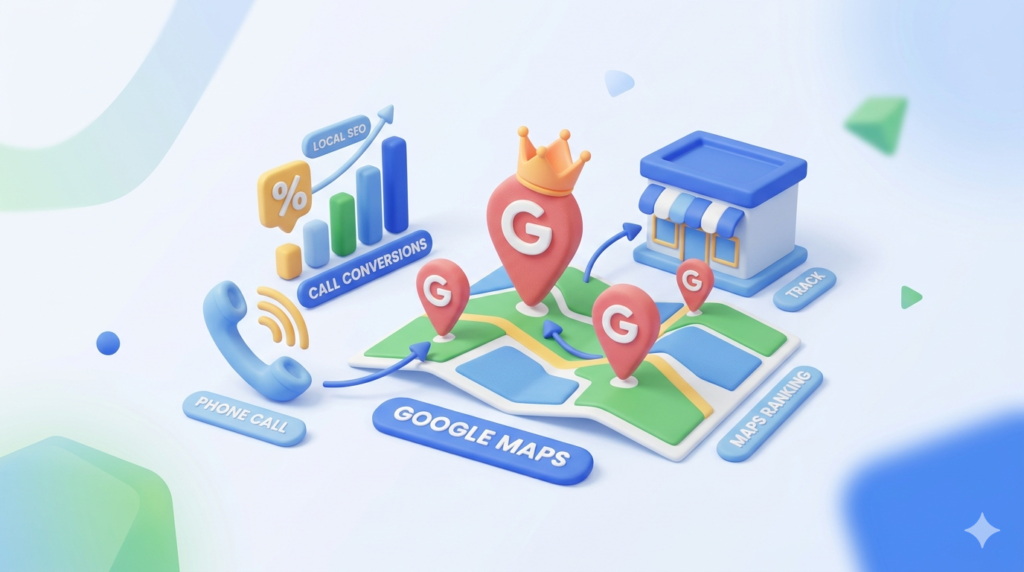
This blog covers two powerful strategies for local businesses: tracking call conversions in Google Ads and improving visibility on Google Maps through local SEO. It explains how to set up call tracking tools and optimize your Google Business Profile. Using both together gives businesses a complete view of what is driving real customer calls.
Introduction
Most businesses spend a significant amount on Google Ads and local SEO. But here’s the problem: a lot of them still can’t answer one simple question: which ad or keyword actually made that customer call? That gap costs real money. And it’s more common than you’d think.
This guide brings together two closely connected topics: tracking call conversions in
Google Ads and dominating Google Maps through local SEO. Why both? Because they’re two halves of the same puzzle. Call tracking tells you what’s driving leads from paid campaigns. Local SEO drives organic search traffic that leads to even more calls. Together, they give you a complete picture of your local marketing performance.
Whether you run a law firm, a dental clinic, or a home services business — this is your step-by-step roadmap.
Part 1: Tracking Call Conversions in Google Ads
Why Phone Calls Still Drive the Most Local Business
Forms are fine. Chat widgets are useful. But for local and service-based businesses, a phone call is often where the real deal gets done. People who call usually have higher intent and are closer to making a decision.
61% of mobile searchers say calling a business is the most important step in their purchase journey. — Think with Google
The problem is, phone calls happen offline. You can see a form submission in your dashboard, but a call? That disappears unless you’ve set up proper Tracking. That’s exactly what conversion tracking in
Google Ads solves.
When you set this up correctly, you can see which specific keywords, ads, and campaigns lead to calls. Not just clicks — actual conversations with potential customers. That’s the kind of data that makes your ad budget work a lot harder.
The Three Types of Call Conversions You Should Know
Before you start setting anything up, it helps to know what you’re actually tracking.
Google Ads supports three main types of call conversions:
- Calls from ads — when someone taps the call button directly from your ad
- Calls to a website phone number — when someone visits your site after clicking an ad, and then calls
- Imported call data — when you track calls in a CRM and bring that data back into Google Ads
For most businesses, the second one, which comes from your website, gives you the richest data. It connects the full journey: from the search query to the ad click to the actual phone conversation.
70% of paid search conversions for local businesses come from phone calls, not form submissions. — BrightLocal Research
Step 1: Turn On Call Reporting
This is where everything begins. Call Reporting is a setting inside
Google Ads that lets Google assign unique forwarding numbers to your ads. Without it, you’re flying blind.
To enable it, log in to
Google Ads, go to Settings > Account Settings > Call Reporting, and flip it on. That’s it. Once you do this, Google can start connecting calls to specific ad interactions.
Step 2: Set Up Call Extensions or Call Ads
Now you need a way for people to actually call from your ad. You have two options here: Call Extensions or Call Ads.
Call Extensions: add your phone number below your regular ad. Users can call directly without visiting your site. Call Ads, on the other hand, are built specifically for calls — the headline itself is the call to action.
Both work well. For industries like HVAC, plumbing, or legal services — where people want to talk to someone fast — Call Ads tend to perform better.
Call-only ads deliver 20% higher conversion rates than standard text ads for service industries. — WordStream PPC Benchmarks
Step 3: Set Up Website Call Conversion Tracking
This is where you track calls that happen after someone visits your website. Here’s the basic flow:
- Go to Tools & Settings > Conversions > New Conversion Action in Google Ads
- Choose Phone Calls > Calls to a phone number on your website
- Name your conversion, assign a value, and set a call length threshold (60 seconds is a solid starting point)
- Install the tracking tag through Google Tag Manager — never hardcode it directly
Using
Google Tag Manager keeps things organized. You add your Conversion ID and Conversion Label in a Google Ads Conversion Tracking tag, set up the triggers, and you’re good to go.
Step 4: Enable Dynamic Number Insertion (DNI)
Dynamic Number Insertion is a clever trick. It automatically swaps your website’s displayed phone number for a unique
Google forwarding number whenever a visitor arrives from an ad click. That way, any call they make gets properly attributed to that specific ad session.
You add a small script snippet from your Google Ads tag setup — place it before the closing </body> tag or through
Google Tag Manager. Then wrap your phone number in a <span> tag with the right ID so the script knows what to replace.
Dynamic Number Insertion can increase tracked phone call volume by up to 40%. — CallRail Marketing Data
After setting it up, test from both a regular browser session and an ad click. The number should only change for ad-driven visits.
Step 5: Test Everything Before You Trust the Data
- Your tags fire on page load
- The forwarding number appears when you arrive from an ad click
- Conversions show up in Google Ads > Conversions
Monitor your conversions for at least 72 hours after setup. Small issues like duplicate tags or misfiring triggers can quickly skew your data.
Step 6: Import Offline Conversions from Your CRM
If you use a CRM like
HubSpot,
Salesforce, or
Zoho CRM, you can take call tracking one step further. Instead of just tracking which calls happen, you can import which calls actually turned into paying customers.
Export your CRM data with Google Click IDs (GCLIDs), then upload it via Tools & Settings > Conversions > Uploads. This closes the loop between ad spend and real revenue.
Importing offline conversions can improve the accuracy of automated bidding by 15–25%. — Google Marketing Platform Blog
Step 7: Use Call Data to Optimize Your Campaigns
Once your data is flowing, use it to actually improve your campaigns. Look at these metrics:
- Call duration — longer calls usually mean higher-quality leads
- Call-through rate — how often impressions turn into calls
- Conversion by keyword — which search terms drive the most calls
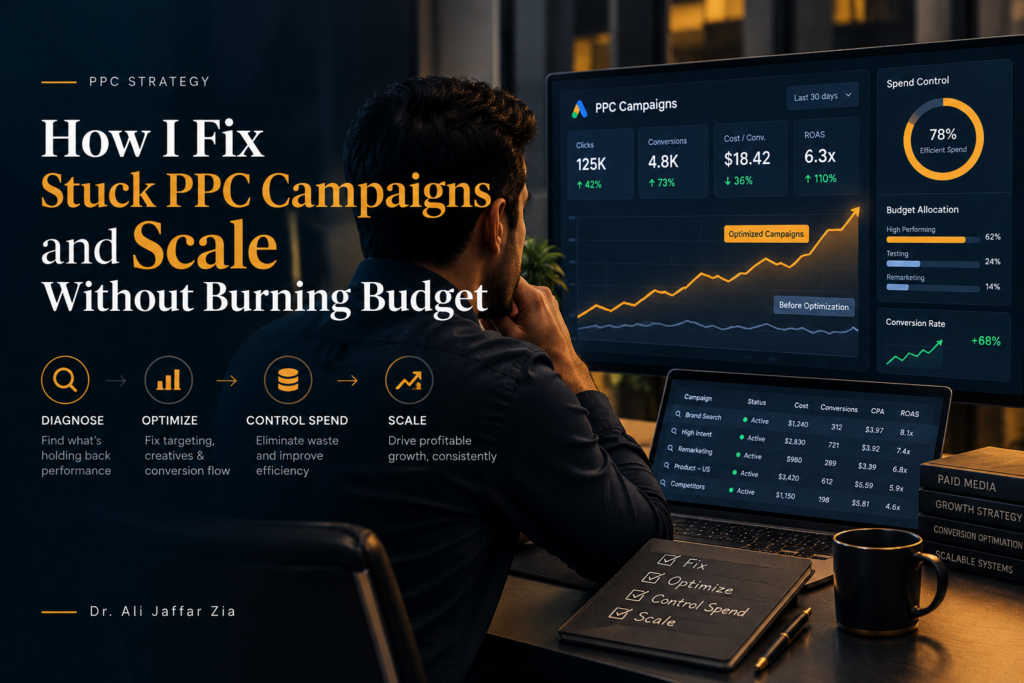
Use these insights to pause low-performing keywords, refine your ad copy, and switch to smart bidding strategies, such as Maximize Conversions, with call goals set as your primary target.
Real Results: HVAC Company in Dallas
A Dallas-based HVAC company set up call extensions, website tracking, and Dynamic Number Insertion. Before this, they only tracked form submissions and missed more than half their leads.
- 58% of total conversions came from phone calls
- Call conversion rate increased by 34%
- Cost per qualified lead dropped by 22%
The marketing team could finally see which keywords brought in real callers — and which ones just burned budget. That clarity changed how they allocated spend across every campaign.
Now that your Google Ads call tracking is solid, let’s talk about the other half of the equation — getting more people to find you organically before they even click an ad. That’s where Local SEO comes in.
Part 2: How to Dominate Google Maps & the Local Pack
Why Local SEO Is Your Long-Term Lead Machine
Paid ads are powerful — but they stop working the moment you pause the budget. Local SEO, on the other hand, keeps delivering leads month after month. It’s the foundation of sustainable local marketing.
78% of local mobile searches lead to an in-store purchase within 24 hours. — Google Consumer Insights
When someone searches ‘dentist near me’ or ‘best plumber in Dallas,’
Google shows them a map with three businesses highlighted — that’s the Local Pack. Getting into those top three spots means massive visibility, more clicks, and more phone calls. And yes — those calls can tie directly back into the tracking system you just set up.
How Google Decides Who Shows Up in the Local Pack
Google uses three main factors to rank local businesses:
- Proximity — how close your business is to the searcher
- Relevance — how well your listing matches what the user is looking for
- Prominence — your online reputation, reviews, and authority
Businesses in the top three Local Pack positions receive over 44% of all local search clicks. — Moz Local Search Ranking Factors
You can’t control proximity. But relevance and prominence? Those are entirely in your hands.
Step 1: Optimize Your Google Business Profile
Here’s how to make the most of it:
- Claim and verify your listing at Google Business Profile Manager
- Use your exact business name — no keyword stuffing
- Pick the right primary and secondary categories
- Add your NAP (Name, Address, Phone) exactly as it appears on your website
- Upload real photos and short videos of your team, location, and work
- Write a natural business description with your main keywords
- Keep your hours of operation accurate and updated
Fully optimized Google Business Profiles receive 5x more views and 70% more direction requests. — BrightLocal
Step 2: Build Consistent NAP Citations
Citations are mentions of your business name, address, and phone number across the web.
Google uses these to verify that your business is legitimate and consistent.
Even a small NAP mismatch — like ‘Street’ vs ‘St.’ — can lower your local ranking consistency. — Search Engine Land
Step 3: Fix Your On-Page Local SEO
Your website reinforces everything your
Google Business Profile signals. Every page should mention your city, service, and contact details in a natural way.
- Use city + keyword combos in page titles and headings (e.g., ‘Dental Clinic in Dallas’)
- Embed a Google Map on your contact page
- Add local schema markup — LocalBusiness, PostalAddress, GeoCoordinates
- Create dedicated location pages for each city or branch you serve
- Link between location pages and relevant service pages
Websites that use local business schema see a 20% higher click-through rate in local search results. — Search Engine Journal
Step 4: Get More Reviews (and Respond to All of Them)
Reviews are one of the strongest local ranking signals. Not just how many you have — but how recent they are and whether you respond to them.
A few easy ways to collect more reviews:
- Send a direct review link after every service
- Put a review QR code at your front desk or in follow-up emails
- Mention it at the end of a call: ‘If you’re happy, we’d love a Google review!’
Respond to every review — good or bad. Keep it genuine. When potential customers see you actually engage with feedback, it builds real trust.
Responding to reviews can improve conversion by up to 35%. — Podium Research
Never buy fake reviews.
Google gets better at detecting them every year, and the penalties are brutal.
Step 5: Earn Local Backlinks
Backlinks from local websites tell
Google that your business is a respected part of the community. These don’t need to be big national publications.
- Sponsor a local event and get a link from their site
- Join your local Chamber of Commerce
- Get featured in a local news article
- Partner with nearby non-competing businesses for cross-links
Use tools like
Pitchbox or
Hunter.io to find and reach out to local link opportunities.
Websites with strong local backlink profiles are 2.2x more likely to appear in the Local Pack. — Backlinko Local SEO Study
Step 6: Create Location-Based Content
Publishing content that ties your services to your city builds topical authority and helps you rank for ‘near me’ searches.
Some ideas that work well:
- ‘Best [Service] in Dallas: What to Look For’
- ‘Seasonal Maintenance Tips for Dallas Homeowners’
- ‘Local Trends in [Your Industry] This Year’
Add local customer stories, team spotlights, or community involvement posts. Real local content resonates with both readers and
Google‘s algorithm.
Adding hyper-local content can increase organic impressions from ‘near me’ searches by 30%. — HubSpot Local SEO Report
Step 7: Optimize for Mobile and Voice Search
Most local searches happen on phones. And a growing number happen through voice assistants like Siri or
Google Assistant. Your site needs to handle both well.
- Check your page speed with PageSpeed Insights
- Add clear click-to-call buttons
- Use conversational, question-style keywords (e.g., ‘Where can I find a good plumber near Uptown Dallas?’)
58% of consumers use voice search to find local business information daily. — Think with Google
Step 8: Use Google Posts and the Q&A Section
Your
Google Business Profile has a Posts section and a Q&A section that most businesses completely ignore. That’s a missed opportunity.
- Post weekly — share promotions, announcements, or local events
- Use calls to action: ‘Call Now,’ ‘Book a Free Estimate,’ ‘Visit Us Today.’
- Answer questions in the Q&A section proactively — don’t wait for strangers to answer for you
Businesses posting weekly on GBP get 20% more click-to-calls and direction requests. — Sterling Sky Local SEO Study
Step 9: Track Your Local Performance
- Which search queries bring people to your profile
- How many calls and direction requests do you get
- Local page traffic and bounce rates
Local businesses that monitor GBP Insights monthly see 25% faster ranking improvements. — Whitespark Local SEO Guide
Real Results: Dallas Clothing Retailer
A Dallas clothing retailer applied a full local SEO strategy — optimizing their
Google Business Profile, collecting 200+ authentic reviews, and publishing Dallas-specific blog content. Within 90 days:
- Map Pack ranking improved from position 9 to 3
- Website traffic from Dallas grew by 43%
- In-store visits increased 28% month over month
No hacks. No shortcuts. Just consistent, well-executed local SEO applied across every touchpoint.
Bringing It All Together: Call Tracking + Local SEO = Full-Funnel Visibility
Here’s the big picture. Local SEO gets people to find you organically on
Google Maps. Call conversion tracking in
Google Ads tells you which paid efforts drive those calls. Together, they give you complete visibility into your entire local marketing funnel.
When a caller rings your business, you can trace it back — was it a Google Ad? A Maps listing? A blog post about local services? That level of clarity lets you make better decisions about every dollar you spend.
Both systems reinforce each other, too. Strong local SEO boosts your brand authority, which can lower your cost per click in Google Ads. Better call-tracking data improves your bidding strategy, generating more revenue. It’s a loop — and when it’s running well, your growth becomes predictable.
Common Mistakes to Avoid (Both Channels)
- Forgetting to enable Call Reporting before setting up call extensions in Google Ads
- Using the wrong Conversion IDs or labels in Google Tag Manager
- Not setting a call length threshold — this leads to counting every accidental dial as a conversion
- Inconsistent NAP information across directories and your website
- Ignoring or not responding to Google reviews
- Using stock images on your Google Business Profile
- Forgetting to update the local schema markup after website changes
- Skipping monthly audits of local listings — data decays over time
Frequently Asked Questions (FAQs)
1. Why do I need to track call conversions in Google Ads?
Because without it, you’re guessing. You can see clicks and impressions, but you can’t tell which campaigns actually make your phone ring. Call conversion tracking connects ad clicks to real customer calls, so you know exactly where to focus your budget.
2. Do I need a Google forwarding number to track calls?
Yes.
Google uses forwarding numbers to link calls to specific ad interactions. Without them, there’s no way to attribute calls back to individual campaigns or keywords.
3. What’s the best call length threshold to use?
60 seconds is the most common starting point. It filters out accidental dials, wrong numbers, and very short interactions. You can adjust this over time based on your data on qualified call length.
4. Can I track calls from both my ads and my website at the same time?
Absolutely. Set up call extensions for direct ad calls and website call conversion tracking for post-click behavior. Use
Google Tag Manager to manage both without conflicts.
5. Can I import call conversion data from my CRM?
Yes. Export your CRM records with Google Click IDs (GCLIDs) and upload them via
Google Ads > Tools & Settings > Conversions > Uploads. This works with platforms like
HubSpot,
Salesforce, and
Zoho CRM.
6. How long does it take to rank in the Google Local Pack?
Most businesses start seeing results within 6 to 12 weeks after consistent
Google Business Profile optimization, citation cleanup, and active review generation. It varies depending on how competitive your market is.
7. Can a small business compete with large brands in local search?
Yes — and this is one of the best things about local SEO.
Google prioritizes proximity and relevance over brand size. A well-optimized local business can outrank a national chain for neighborhood searches.
8. How important are Google reviews for local rankings?
Very important.
Google looks at the number of reviews, average rating, how recent they are, and whether the business responds. All four factors contribute to your local pack ranking and customer trust.
9. What tools should I use to track my local SEO performance?
10. How do call Tracking and local SEO work together?
Local SEO drives organic traffic to your profile and website. Call tracking (through
Google Ads) tells you which paid efforts lead to actual phone calls. Together, they create a full-funnel view of your local marketing — organic visibility plus paid attribution, all tied to real customer conversations.
Also Read:
-
-
-
-
-